Hello!
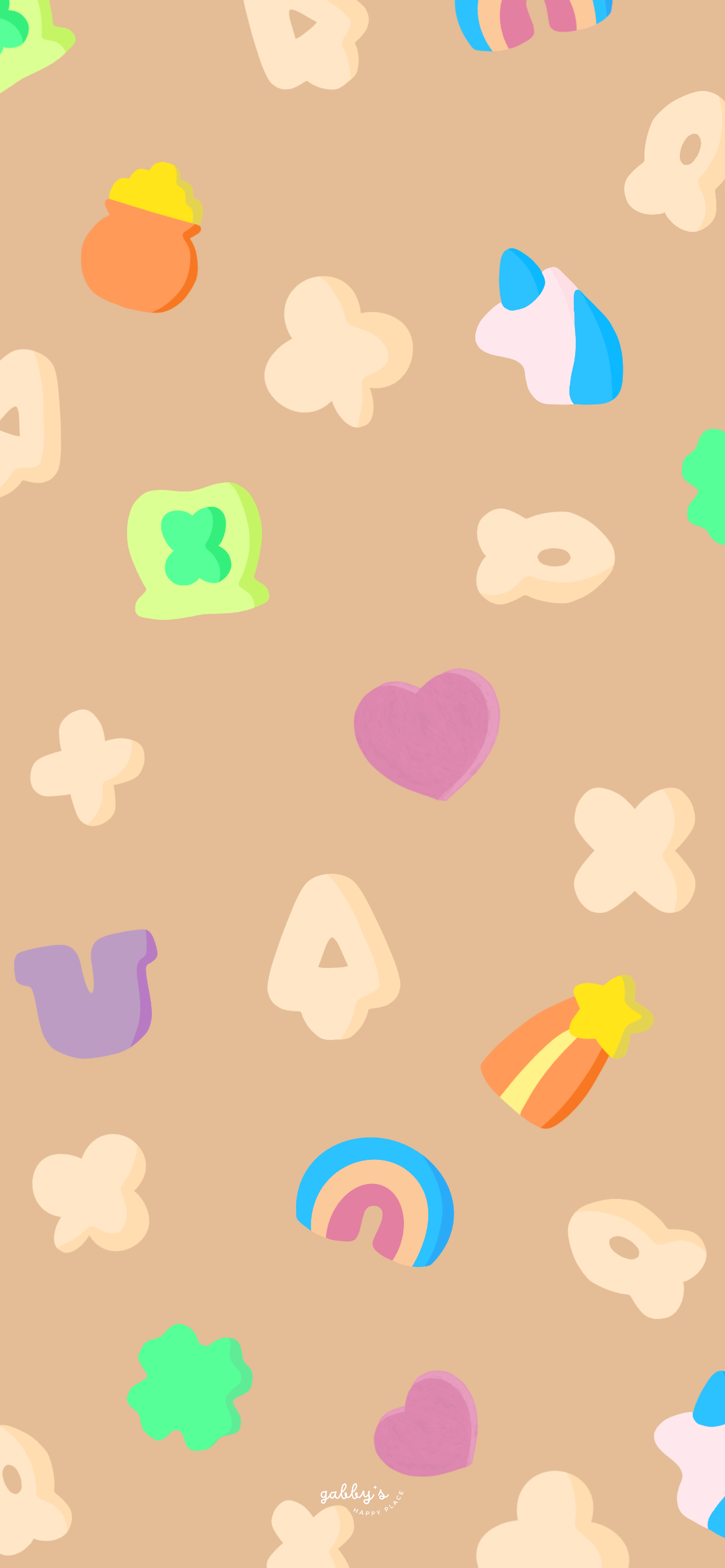
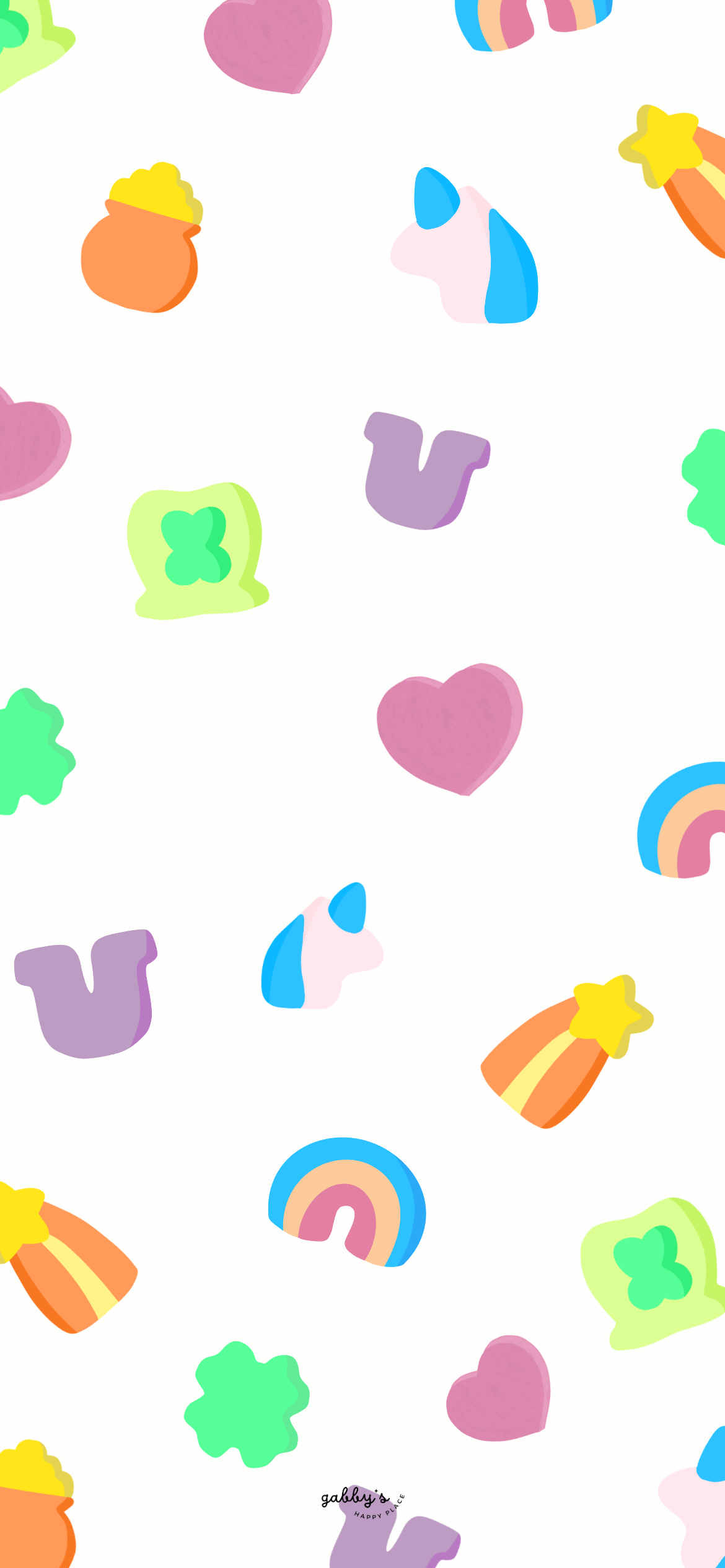
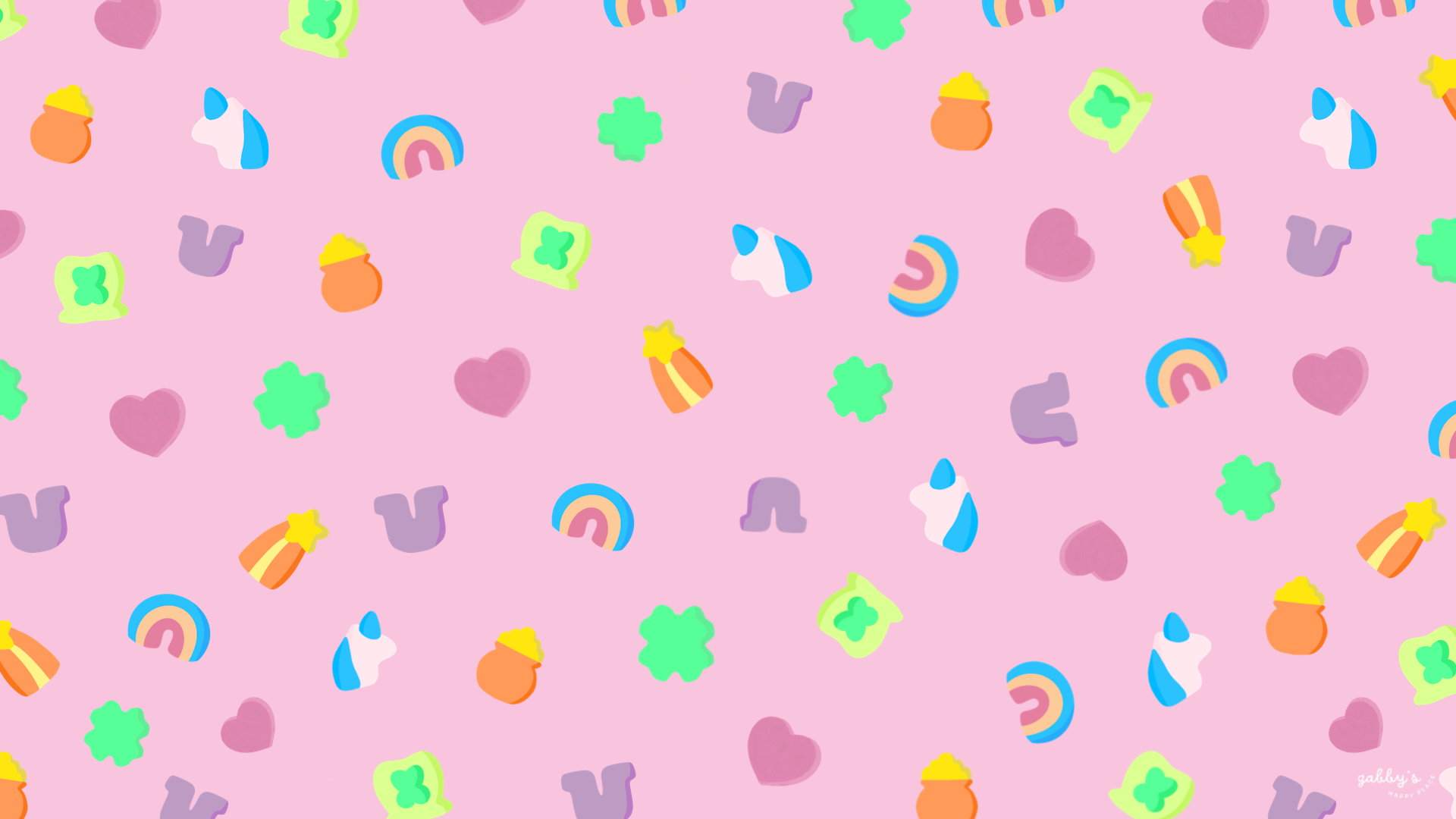
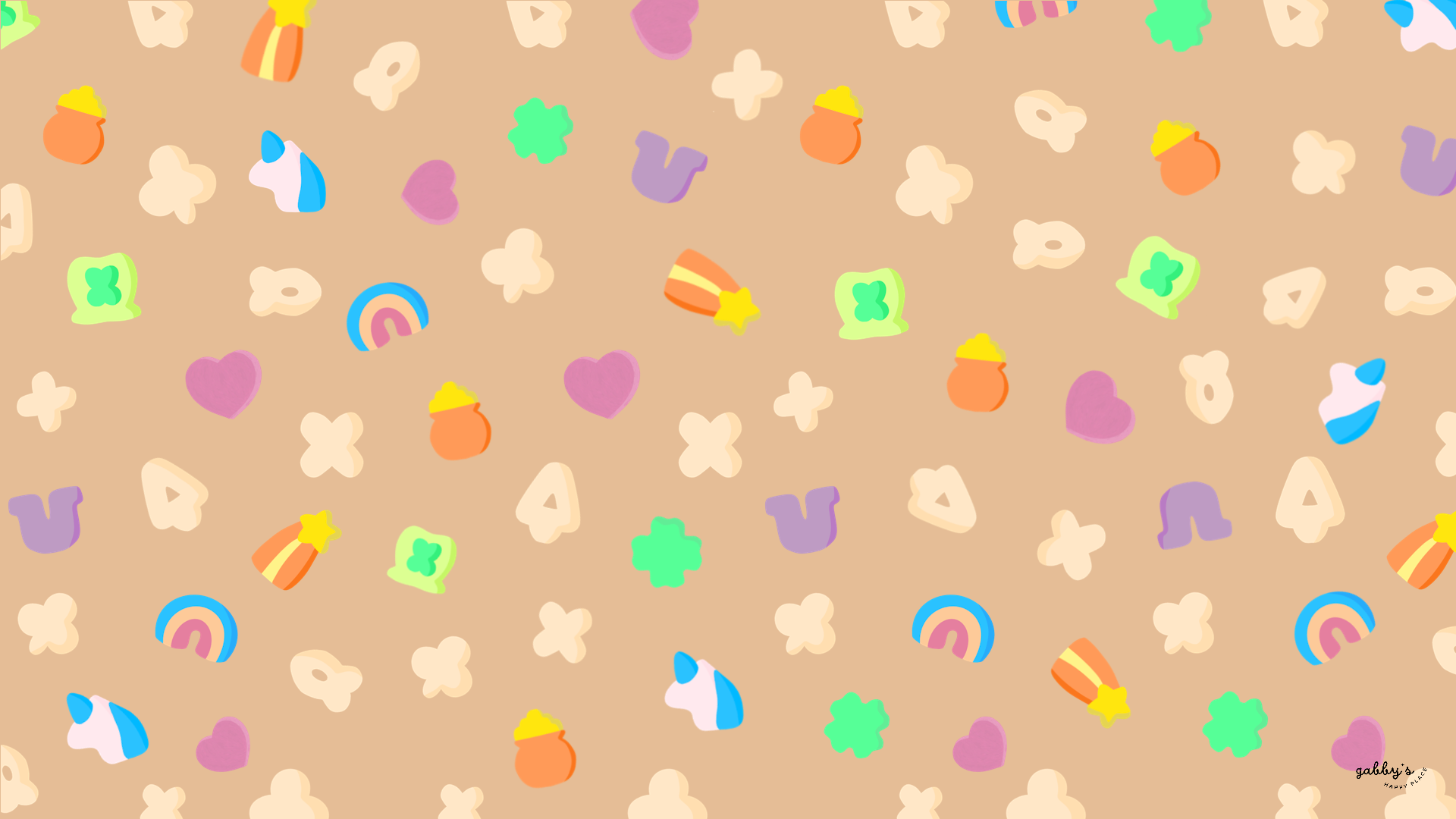
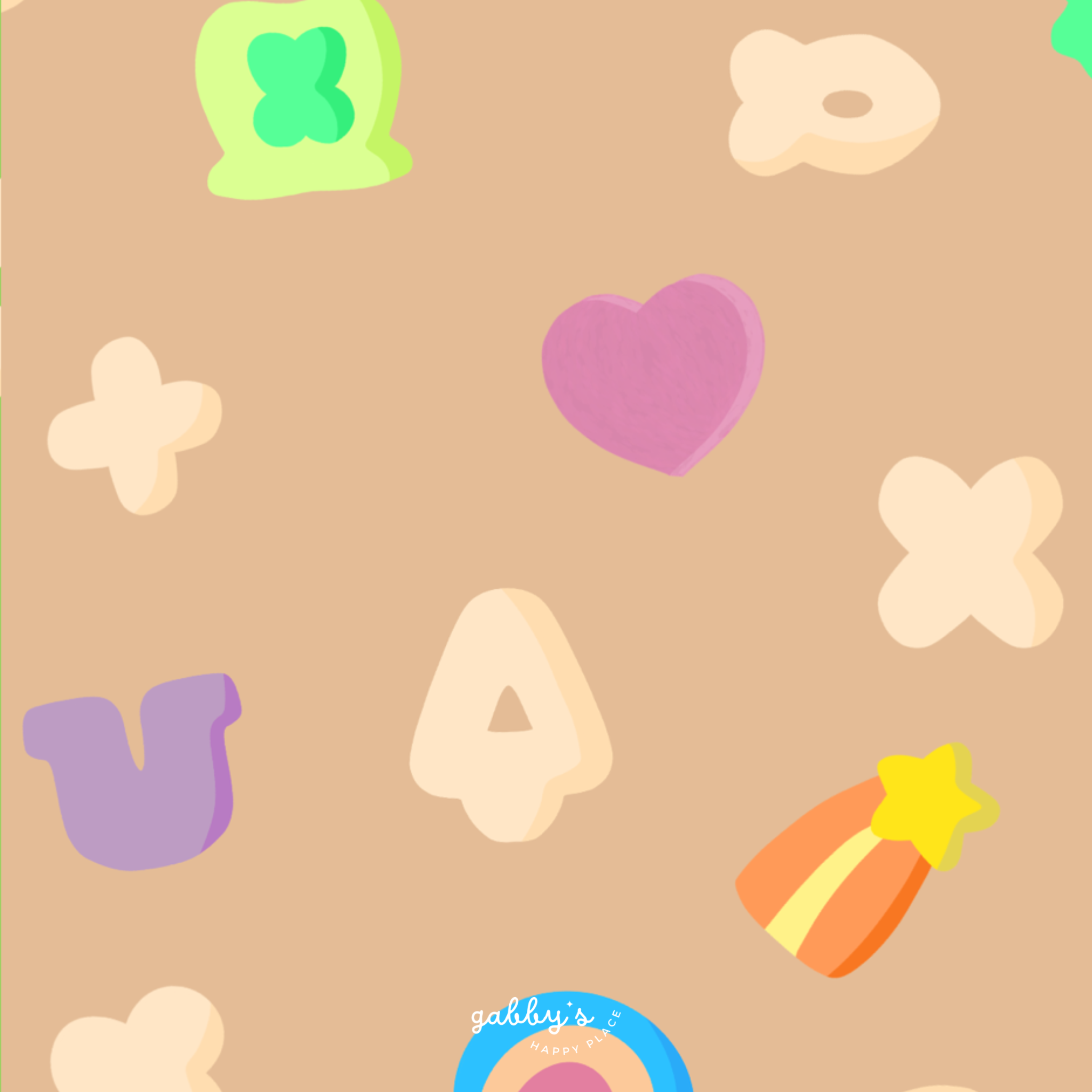
With St. Patrick’s Day just around the corner, I’ve been feeling inspired by all things lucky – think leprechauns, four-leaf clovers, and pots of gold at the end of rainbows. And what better way to celebrate than by decking out our devices with some seriously charming wallpapers? That’s right, I’m talking about Lucky Charms wallpapers – the perfect way to infuse a little extra luck into our everyday tech routines!
Whether you’re glued to your phone, typing away on your computer, or keeping track of time with your trusty smartwatch, we’ve got something special for you. From whimsical leprechaun hats to four-leaf clovers and rainbows, our collection has been curated with care to ensure that every device can sparkle with a touch of Irish magic.
So, grab a cup of your favorite beverage, cozy up in your favorite spot, and let’s dive into the world of Lucky Charms wallpapers together. Get ready to elevate your digital experience and spread some positivity wherever you go! After all, who couldn’t use a little extra luck in their day-to-day life?
Don’t forget to subscribe to email notifications so you never miss out when I drop new freebies. Plus, as a subscriber, you get exclusive access to the Subscribers’ Vault where all the best goodies are stored! And make sure to check out my shop for more content! You can find other wallpapers on my Wallpaper Page or click here. #WallpaperWednesday
XOXO,
Gabby.

Table of Contents
Why having matching wallpapers on all your devices is awesome?
Having matching wallpapers across all your devices is not only visually pleasing, but it also adds a fun and cohesive vibe to your digital world! Coordinating wallpapers bring a touch of personalization and style to each device while keeping everything looking neat and organized.
Plus, it’s super satisfying to have your phone, computer, and smartwatch all rocking the same cool wallpaper – talk about #squadgoals! Whether you’re a professional or just love to keep things looking fresh, matching wallpapers are a simple way to level up your digital game and make everything look on point!

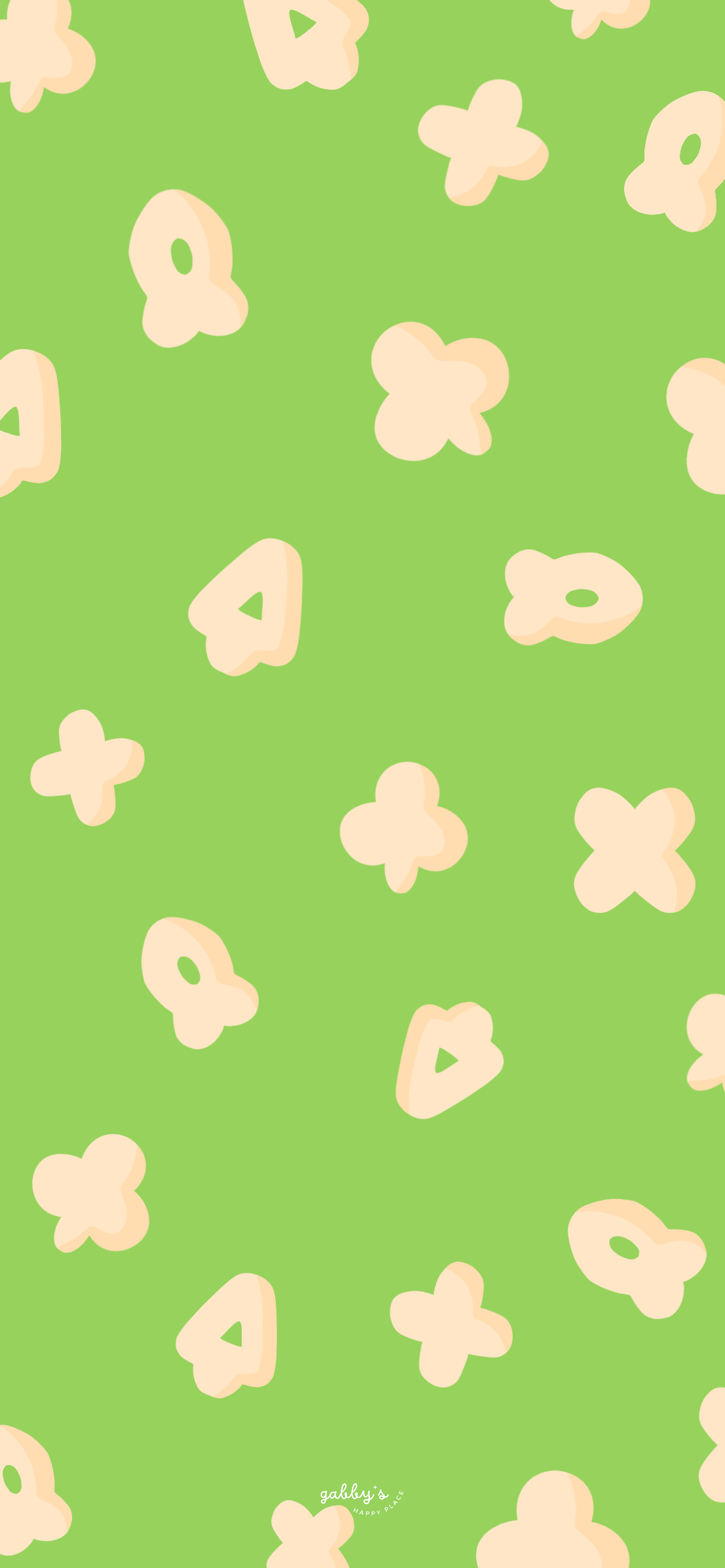
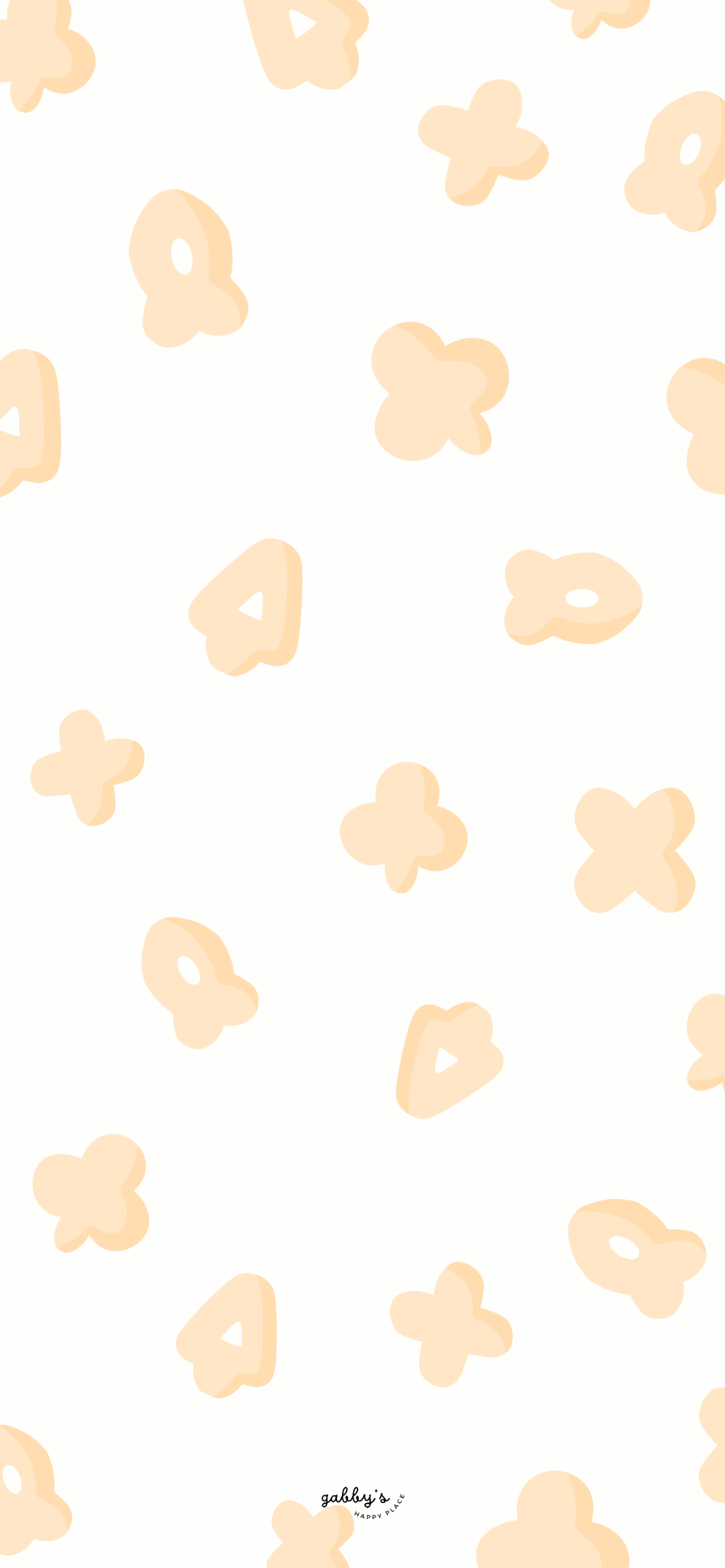
Lucky Charms Wallpapers
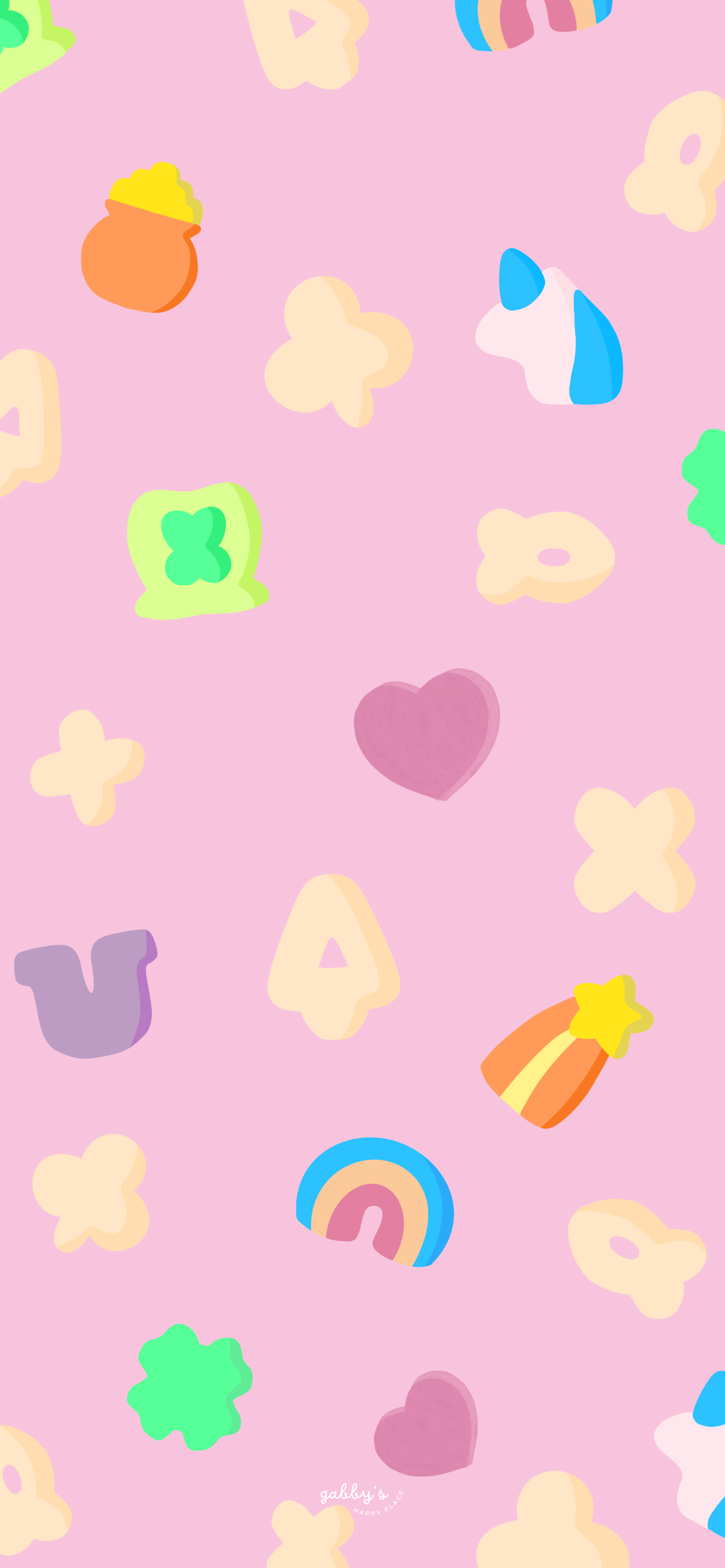
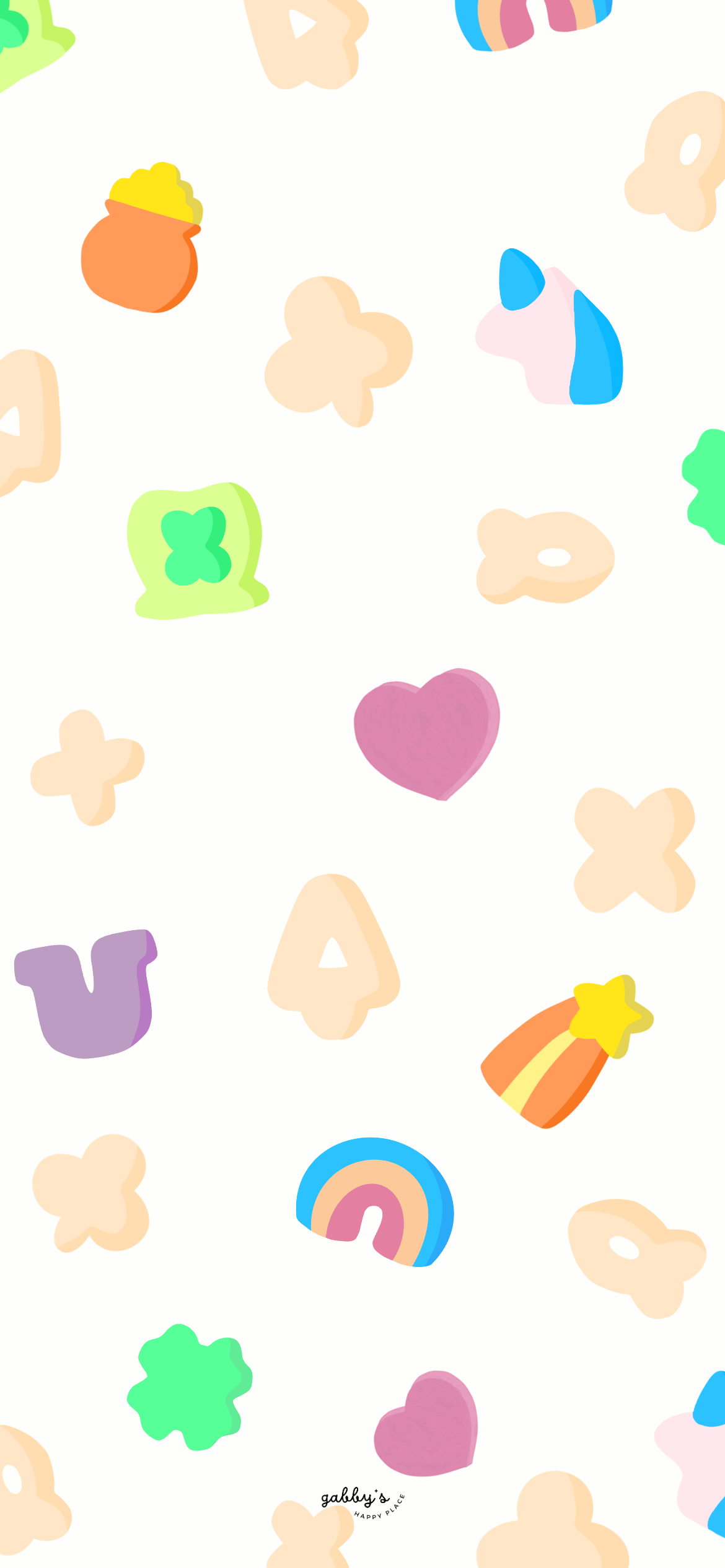
Phone Wallpapers
How to download and set up these phone wallpapers:
- Long-press on the images below or press the “download” button below.
- Select save image or download.
- Open your photo app and click on the wallpaper.
- Set as your phone wallpaper or lock screen.
- Enjoy your wallpaper!
If you need more help with the installation of these wallpapers make sure to check my guide “How to download and set up your new wallpaper on any device” here. Need extra help? If you have any questions or need assistance, feel free to check my FAQs page or reach out to me at gabbyshappyplace@gmail.com I’m here to help!


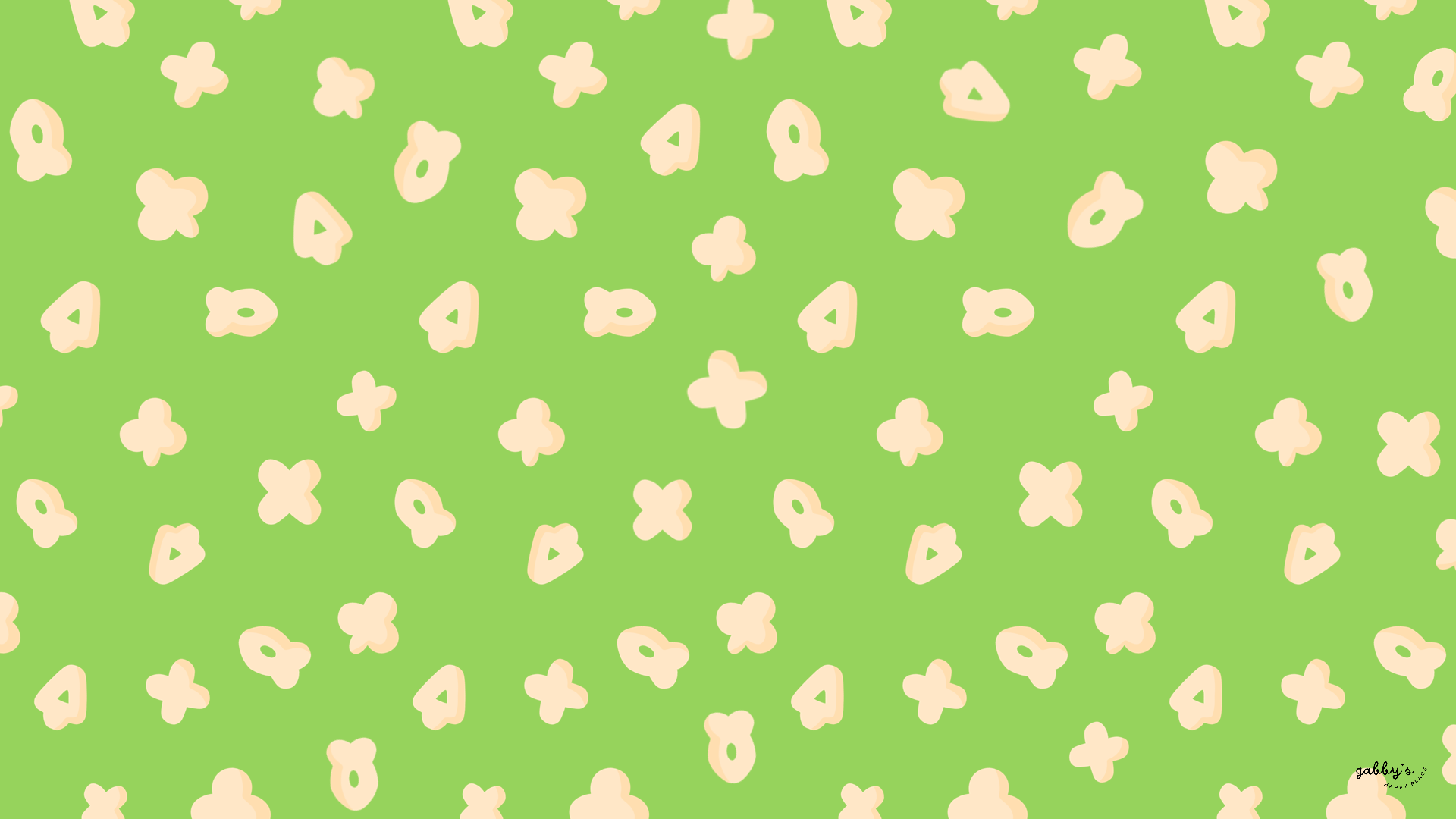
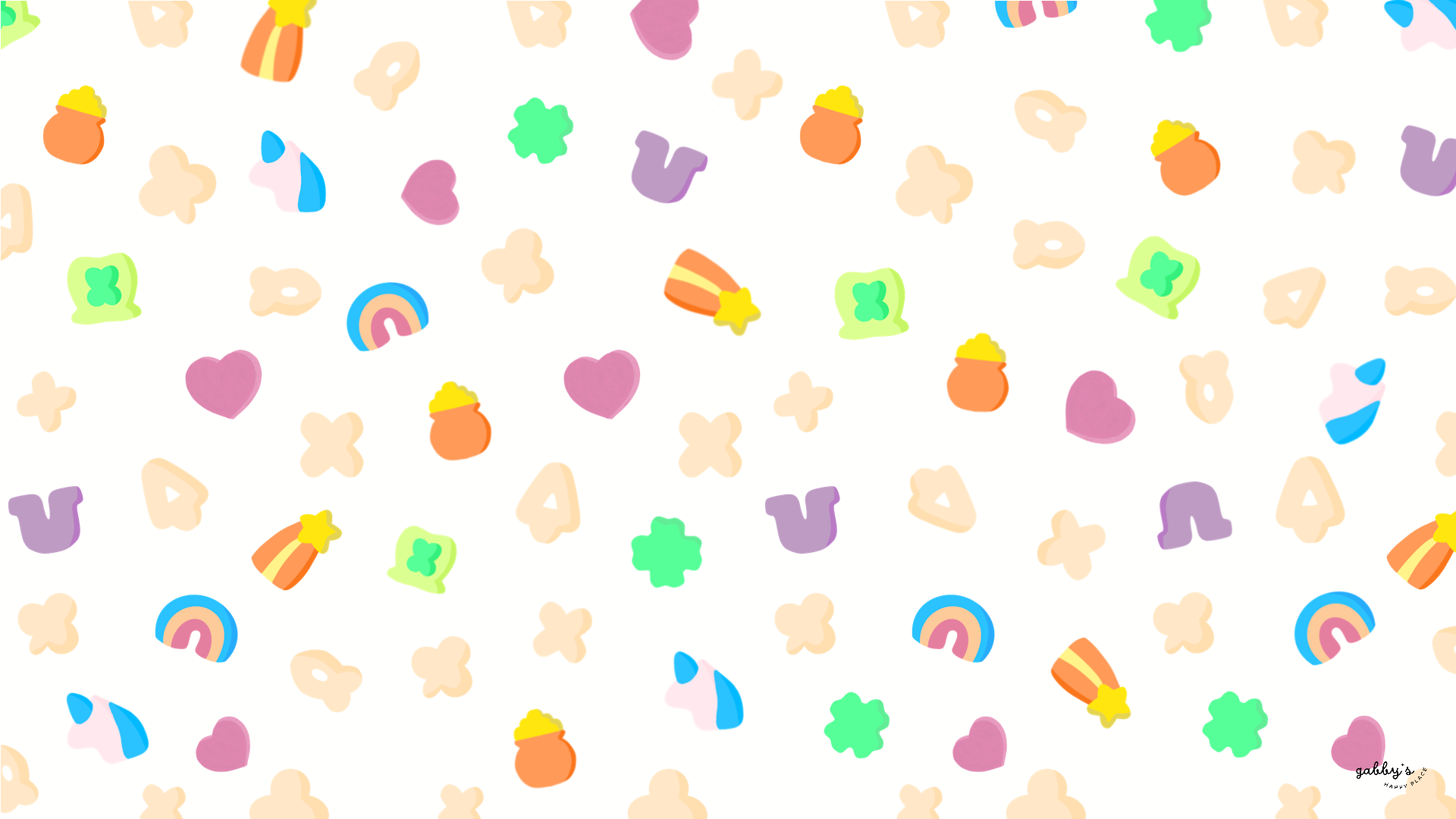
Computer Wallpapers
How to download and set up these computer wallpapers:
Windows users:
- Find the wallpaper you want and save the image.
- Right-click on your desktop and select “Personalize.”
- Click on “Background” and then “Browse” to locate the saved wallpaper.
- Select the wallpaper and adjust settings if needed.
- Click “Choose picture” or “Save changes” to apply.
- Enjoy your wallpaper!
Mac users:
- Find the wallpaper you want and save the image.
- Open System Preferences from the Apple menu.
- Click on “Desktop & Screen Saver.”
- In the Desktop tab, click the “+” button to add the saved wallpaper.
- Select the wallpaper from your saved location.
- Adjust settings like picture fit and screen selection if needed.
- Enjoy your wallpaper!
If you need more help with the installation of these wallpapers make sure to check my guide “How to download and set up your new wallpaper on any device” here. Need extra help? If you have any questions or need assistance, feel free to check my FAQs page or reach out to me at gabbyshappyplace@gmail.com I’m here to help!


Smartwatch Wallpapers
How to download and set up these smartwatch wallpapers:
- Find the wallpaper you want and save the image.
- Open the companion app for your smartwatch on your smartphone.
- Navigate to the section for customizing your watch face or wallpaper.
- Choose the option to add a new wallpaper or watch face.
- Select the saved image from your phone’s gallery or file manager.
- Adjust settings such as position and style if available.
- Save or apply the wallpaper to your smartwatch.
- Enjoy your customized smartwatch wallpaper!
If you need more help with the installation of these wallpapers make sure to check my guide “How to download and set up your new wallpaper on any device” here.


I hope you love these wallpapers! Let me know in the comments below which is your favorite and what other content you want to see next!