
Hey there, beach lovers!
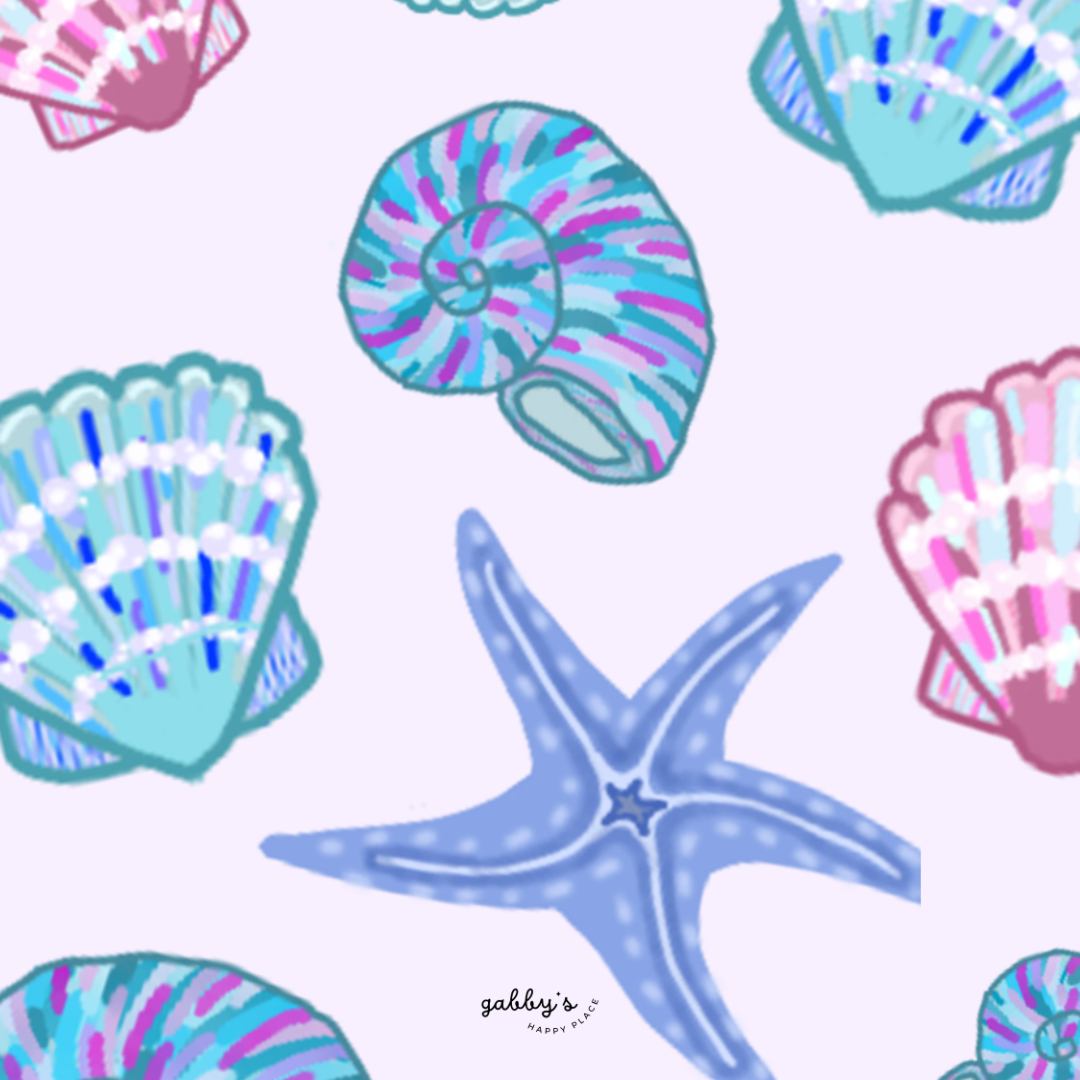
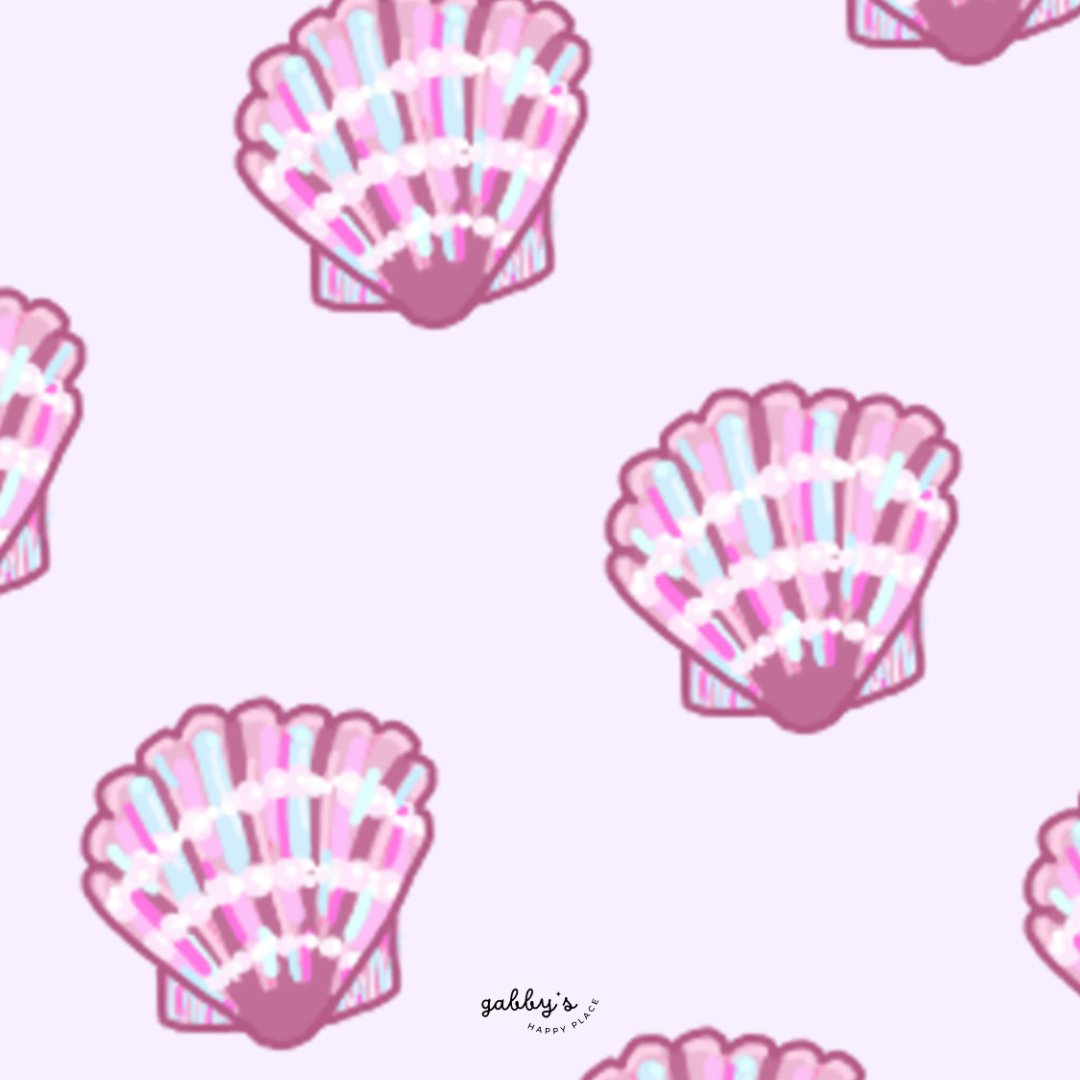
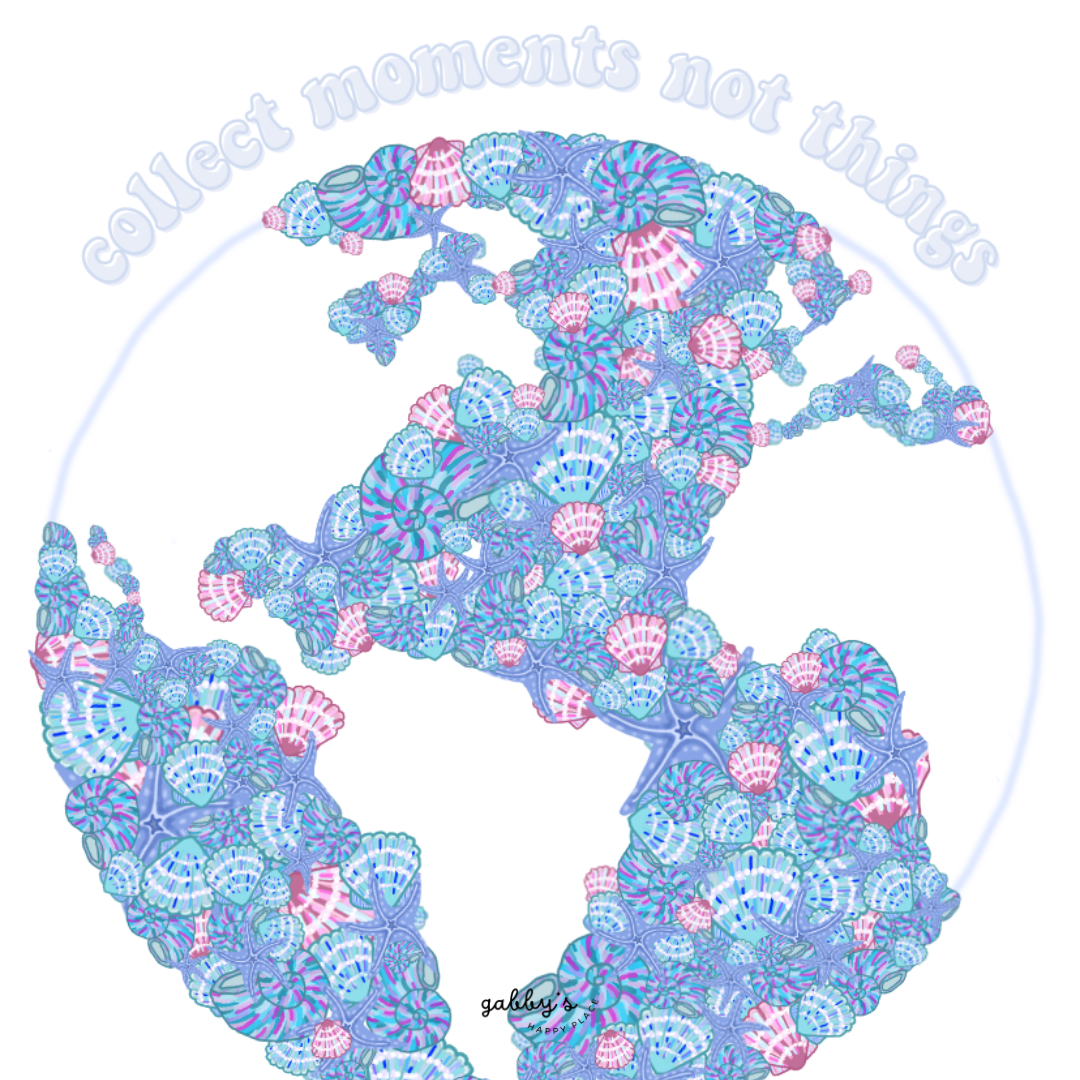
If you’re anything like me, you’re constantly seeking ways to bring a touch of tranquility and coastal charm into your daily life, even when you’re stuck at your desk. Well, get ready to transform your digital workspace into a serene oasis with our latest collection of Sea Shell Backgrounds!
Picture this: the gentle sound of waves crashing, the warm sun kissing your skin, and the soft crunch of sand beneath your feet… Ah, can’t you just feel the salty breeze already? These stunning wallpapers are more than just images on your screen – they’re a ticket to an instant mental getaway, a reminder to pause, take a deep breath, and let the calming vibes of the sea wash over you.
Don’t forget to subscribe to email notifications so you never miss out when I drop new freebies. Plus, as a subscriber, you get exclusive access to the Subscribers’ Vault where all the best goodies are stored! And make sure to check out my shop for more content! You can find other wallpapers on my Wallpaper Page or click here. #WallpaperWednesday
If you came across this post and you want the matching phone wallpapers make sure to check them out here.

Capture the positivity! Pin your favorite wallpaper to your Pinterest board, ensuring you always have a delightful link back to this post whenever you need inspiration! For more content, follow me on
Table of Contents
Sea Shell Backgrounds
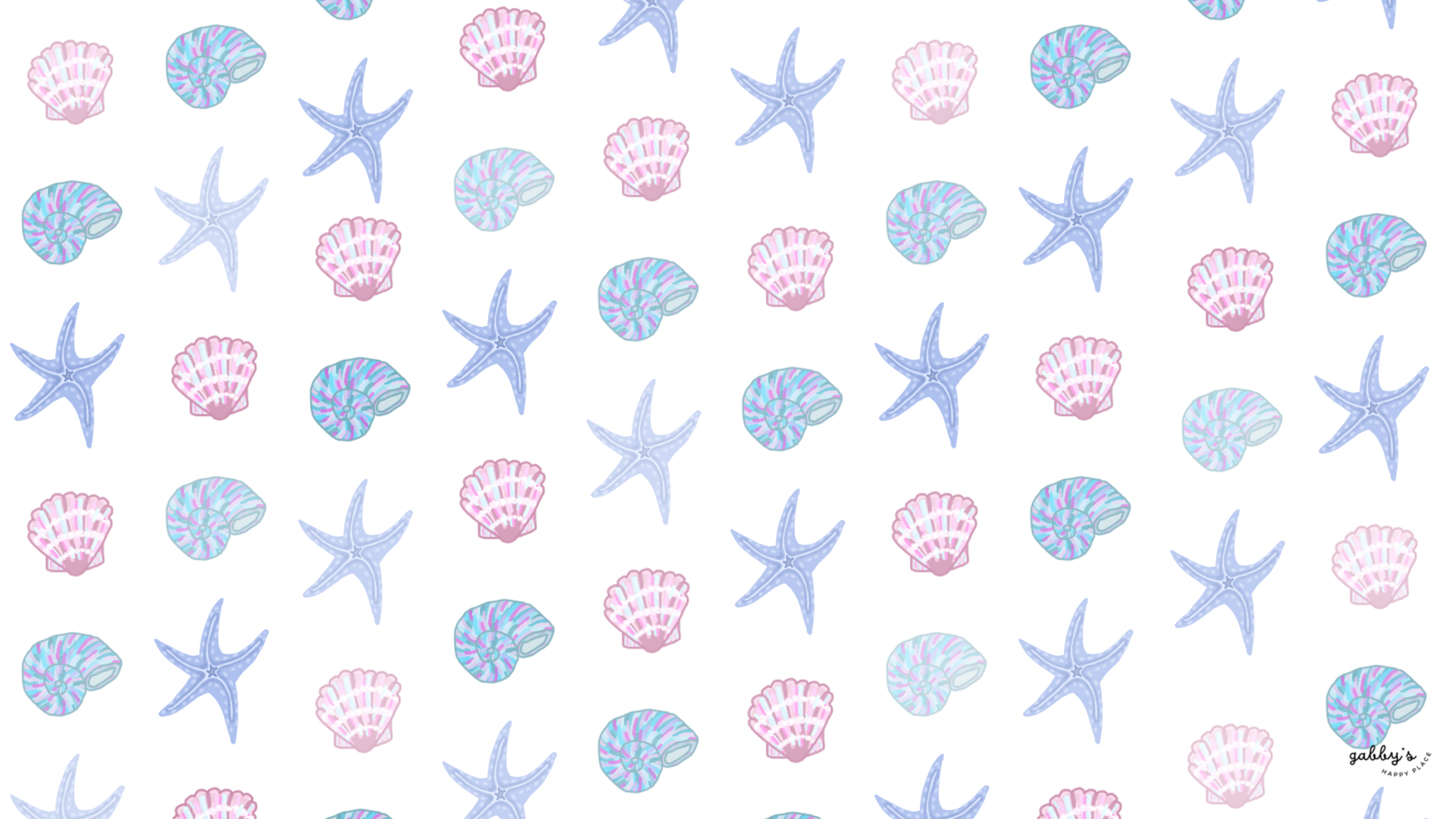
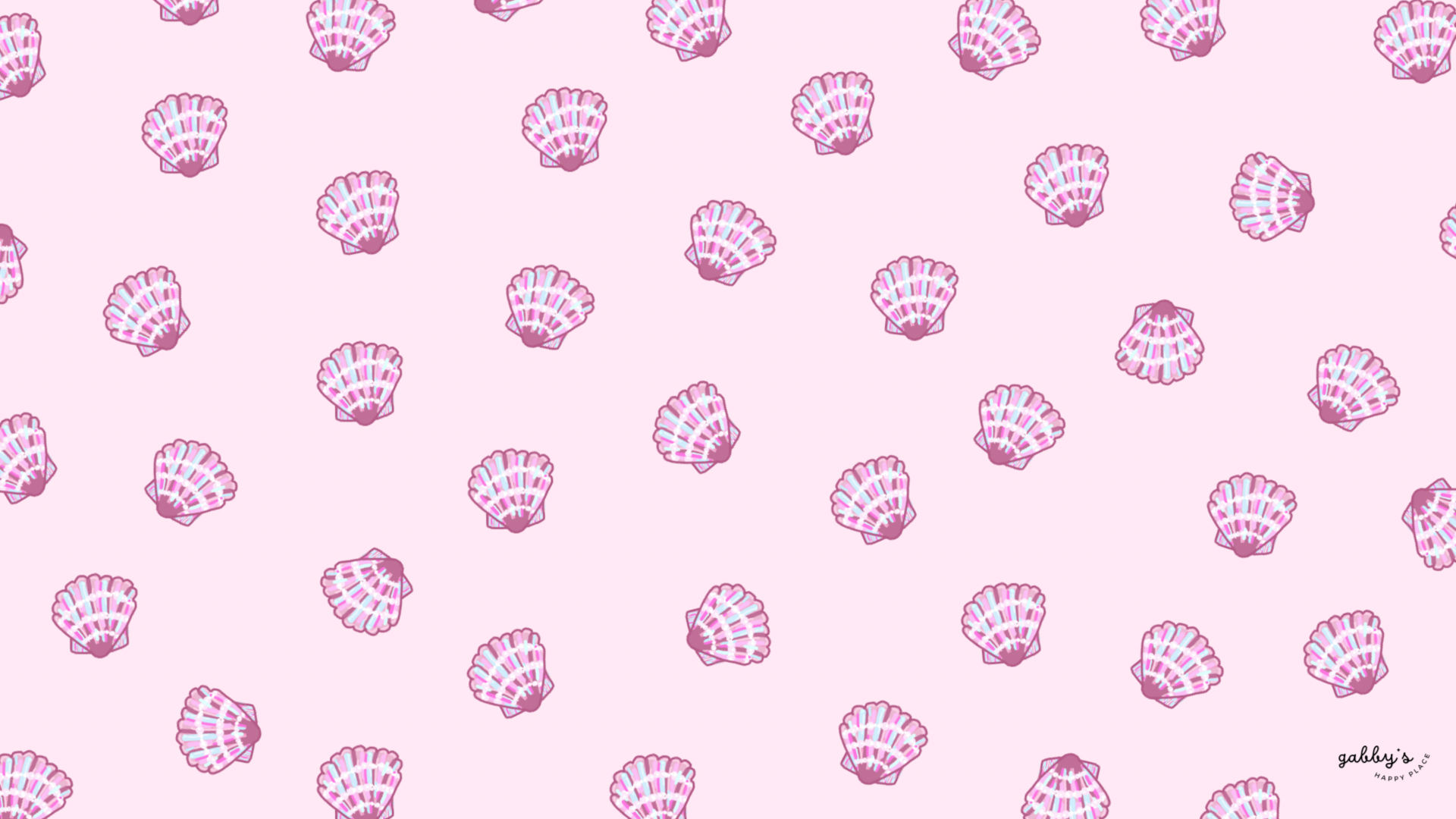
Desktop Wallpapers
How to download and set up these phone wallpapers:
Windows users:
- Find the wallpaper you want and save the image.
- Right-click on your desktop and select “Personalize.”
- Click on “Background” and then “Browse” to locate the saved wallpaper.
- Select the wallpaper and adjust settings if needed.
- Click “Choose picture” or “Save changes” to apply.
- Enjoy your wallpaper!
Mac users:
- Find the wallpaper you want and save the image.
- Open System Preferences from the Apple menu.
- Click on “Desktop & Screen Saver.”
- In the Desktop tab, click the “+” button to add the saved wallpaper.
- Select the wallpaper from your saved location.
- Adjust settings like picture fit and screen selection if needed.
- Enjoy your wallpaper!
If you need more help with the installation of these wallpapers make sure to check my guide “How to download and set up your new wallpaper on any device” here. Need extra help? If you have any questions or need assistance, feel free to check my FAQs page or reach out to me at gabbyshappyplace@gmail.com I’m here to help!


Don’t forget to check out my shop!
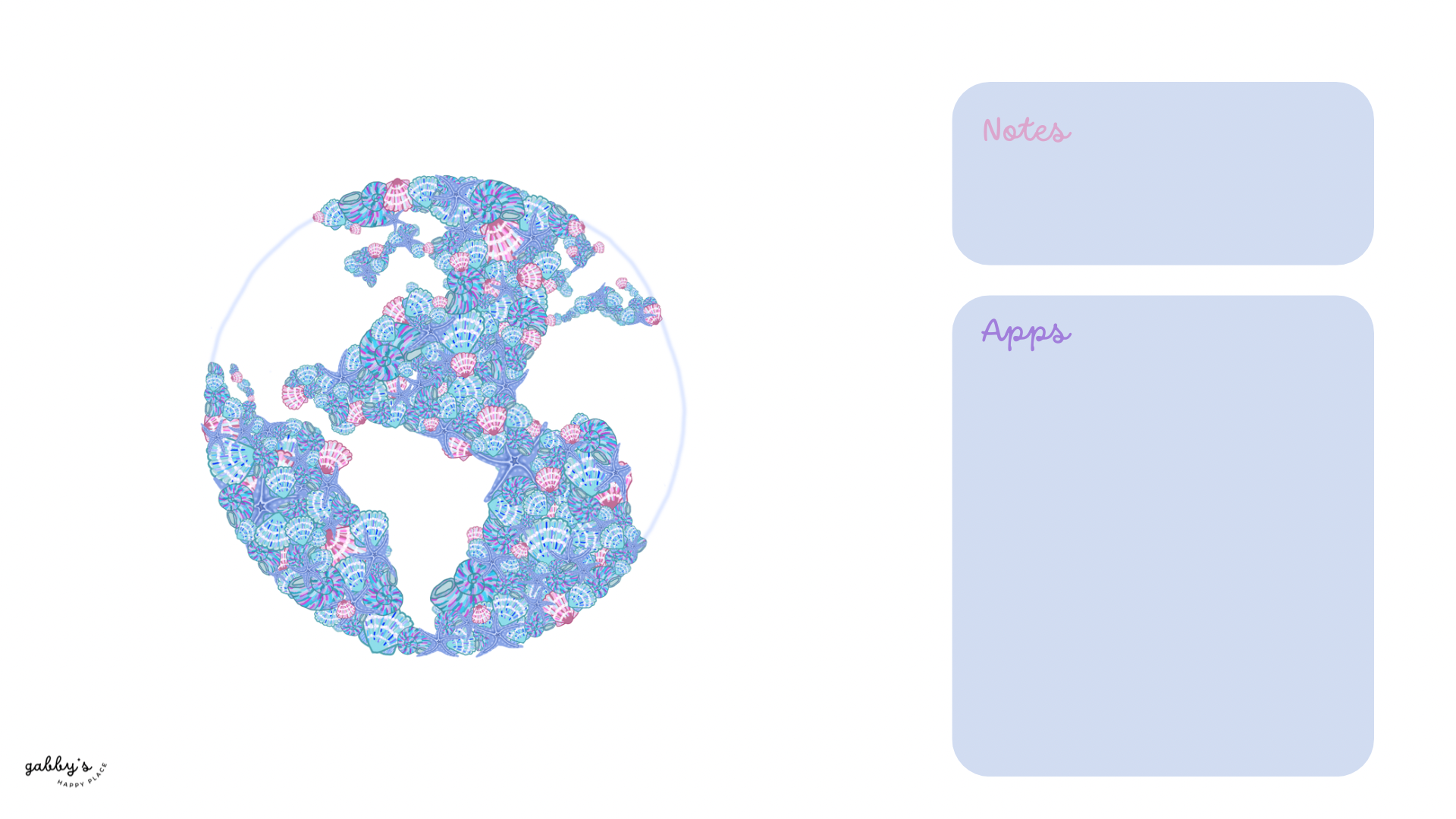
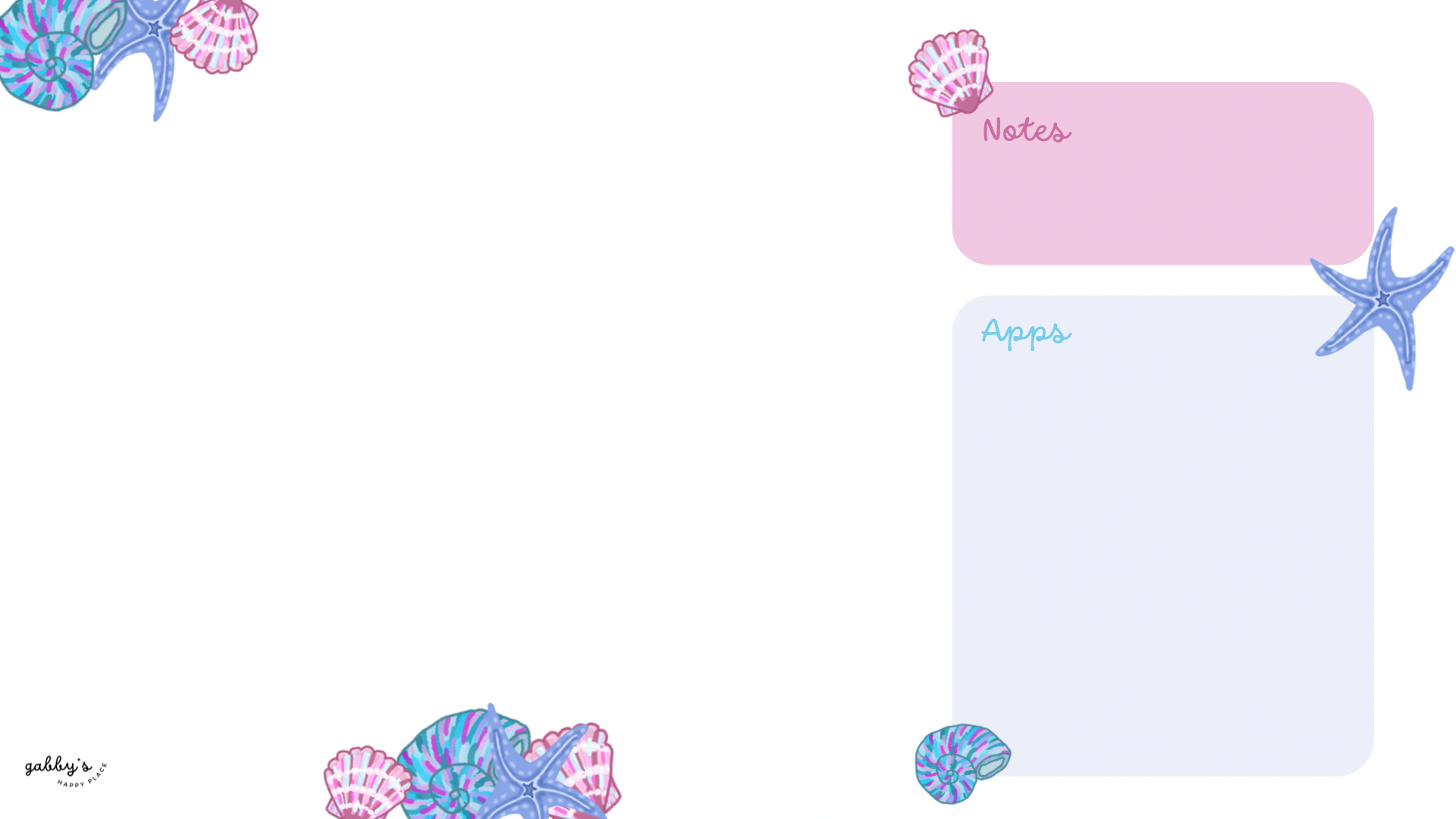
With space for apps and notes:
As a Mac user, I love adding sticky notes on my desktop with things I have to remember, buy, or write down to-do lists. If you don’t know how to add them on your desktop, you can learn here.


Check out my Etsy Shop
Sea Shell Backgrounds
Smartwatch Wallpapers
How to download and set up these smartwatch wallpapers:
- Find the wallpaper you want and save the image.
- Open the companion app for your smartwatch on your smartphone.
- Navigate to the section for customizing your watch face or wallpaper.
- Choose the option to add a new wallpaper or watch face.
- Select the saved image from your phone’s gallery or file manager.
- Adjust settings such as position and style if available.
- Save or apply the wallpaper to your smartwatch.
- Enjoy your customized smartwatch wallpaper!
If you need more help with the installation of these wallpapers make sure to check my guide “How to download and set up your new wallpaper on any device” here. Need extra help? If you have any questions or need assistance, feel free to check my FAQs page or reach out to me at gabbyshappyplace@gmail.com I’m here to help!


I hope you love these wallpapers! Let me know in the comments below which is your favorite and what other content you want to see next!

Enjoyed this post? Share your thoughts by casting your like here! Your feedback fuels more of the content you love!







Leave a comment here! I LOVE hearing about you!